|
<< Click to Display Table of Contents >> Locking Products |
  
|
|
<< Click to Display Table of Contents >> Locking Products |
|
Objects in a plan can be locked so they cannot be accidentally moved or edited. For example, when you have created your floor plan and are exploring furniture layout options, it may make sense to prevent edits to structural items like walls and floors. products can locked using the product info panel.
Note: The product info panel can be used to lock a single product. If you would like to lock all products in the plan, use the Lock command from the Edit menu.
| 1. | Select a product by clicking on it using the selection tool. |
| 2. | The product info panel appears with a variety of controls for manipulating the product. |
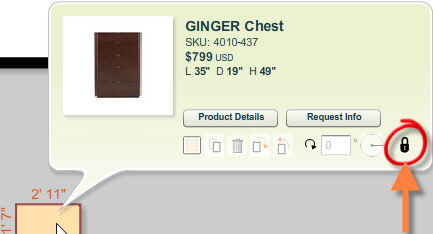
| 3. | Click on the lock button ( ) in the product info panel. ) in the product info panel. |
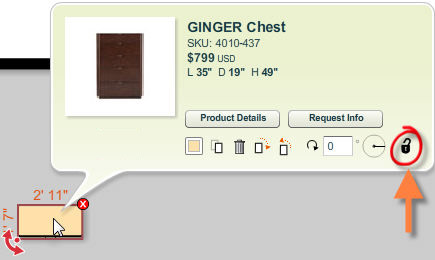
| 4. | The selected product will be locked for editing and the lock button will now be displayed as  . All functions in the system info panel will be disabled and you cannot make any changes to the product until the product is unlocked. This includes resizing, rotating and moving the product and editing any of the properties in the product info panel. . All functions in the system info panel will be disabled and you cannot make any changes to the product until the product is unlocked. This includes resizing, rotating and moving the product and editing any of the properties in the product info panel. |